Let your team sign in to Littlebird through your company's identity provider, require it for your domains, and sync people from your directory.
Single sign-on (SSO) lets people on your team sign in to Littlebird with their work account from your company’s identity provider. You can also require it for everyone on your email domains, and keep team membership in step with your directory.
Supported identity providers
You can connect any of these:
- Okta
- Microsoft Entra ID
- Google Workspace
- Active Directory Federation Services (ADFS)
- PingFederate
- Keycloak
- Any other provider that supports SAML or OpenID Connect (OIDC)
Before you start
- You need to be an owner or admin of your Littlebird team. Other members do not see the Single Sign-On section.
- Your team subscription needs to be active.
- Your IT admin needs access to your identity provider, and to your domain’s DNS settings to verify that your company owns the email domain.
Set up SSO
You start the setup in Littlebird’s settings. The rest happens in a setup guide in your browser, which you can hand to your IT admin.
- Open the team settingsOpen Settings → Team, then scroll to Single Sign-On.
- Select Set up SSO
Littlebird opens the setup guide in your browser. The section in the app now shows Setup in progress.
- Connect your identity provider
In the setup guide, choose your identity provider and follow its instructions to connect it to Littlebird.
- Verify your email domain
Add the DNS record the setup guide gives you. Littlebird only accepts SSO sign-ins for domains you have verified.
- Return to Littlebird
Once your domain is verified, the Single Sign-On section shows Connected and lists your domains.
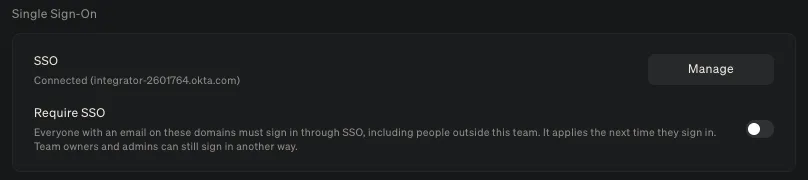
To change the connection later, select Manage to open the setup guide again.
Require SSO
Once SSO is connected, you can turn on Require SSO. Everyone with an email on your verified domains must then sign in through SSO.
- It applies to everyone on those domains, including people who are not on your Littlebird team.
- It applies the next time each person signs in. People who are already signed in stay signed in until then.
- Owners and admins of your team can still sign in another way, so you cannot lock yourself out.
If someone without an exemption tries another sign-in method, Littlebird shows Your company requires SSO.
If you remove all your verified domains from the connection, Littlebird turns Require SSO off.
Sign in with SSO
Your team signs in the same way on Mac, Windows, the web, and the iPhone and Android apps.
- Enter your work email and select Continue.
- On the Sign in with SSO screen, select Continue with SSO.
- Sign in with your identity provider.
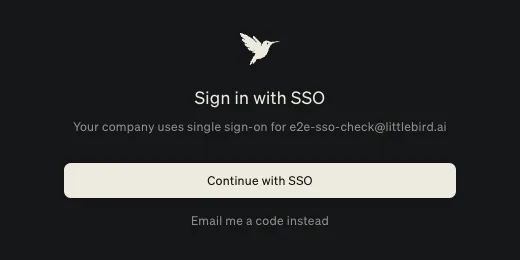
If your company does not require SSO, you can select Email me a code instead to sign in with a code.
The first time someone signs in through SSO, Littlebird adds them to your team. They join as long as they are not already on another Littlebird team and were not removed from yours.
Sync people from your directory
User provisioning, also called SCIM, lets your identity provider tell Littlebird when people leave, change, or move into the admin group. It is optional, and you can add it after SSO is connected.
Turn on provisioning
- Open the setup guide
In Settings → Team, select Manage in the Single Sign-On section, then open Provisioning.
- Add a SCIM app in your identity provider
The setup guide shows the steps for your identity provider. In Okta, for example, you add a SCIM template app.
- Copy the base URL and a bearer token
The setup guide gives you a Base URL and lets you generate a bearer token. Paste both into the SCIM app’s provisioning settings. Copy the token before you close the dialog, because it is shown only once.
- Assign people and push groups
Assign the people who use Littlebird to the SCIM app. To manage admins from your identity provider, also push the
littlebird-adminsgroup.
What provisioning changes
Assigning someone to the SCIM app does not add them to your Littlebird team. They join the first time they sign in through SSO. After that, your identity provider keeps them up to date:
- Removing someone. When you deactivate or delete a person in your identity provider, they leave your Littlebird team, their seat is freed, and they can no longer sign in through SSO.
- Name and email changes. When a person’s name changes, Littlebird updates it. Email changes sync when the new address is on one of your verified domains.
- Admins. To make someone a team admin, add them to a group named
littlebird-adminsin your identity provider and sync that group to Littlebird. Removing them from the group makes them a member again. The team owner’s role does not change.
Troubleshooting
The Single Sign-On section shows Setup in progress. The connection is not finished yet, or your domain is not verified. Select Manage to return to the setup guide and complete the remaining steps.
People see “Your company requires SSO”. Their email is on a domain where Require SSO is on. Ask them to sign in with Continue with SSO.
People see “This email can’t sign in through your company’s SSO”. Their email is not on one of your verified domains. Verify the domain in the setup guide, or ask them to sign in with an address on a verified domain.
Still need help? Email support@littlebird.ai.