Set a useful prompt once and let Littlebird bring the briefing, review, or update back to you on schedule.
What Routines do
Most of the time, you interact with Littlebird by asking a question and pulling information when you need it. Routines flip that model.
A Routine is an automated prompt that pushes targeted information to you on a schedule you control. For example, instead of manually reviewing your calendar and notes for your daily priorities, a Routine can automatically analyze that context and deliver a briefing to you every morning at 8:30 am.
Chat answers when you ask. Routines save you from asking the same question every day: write the request once, choose a schedule, and let Littlebird bring the result back to you.
Start from the Routine Library
Let Littlebird create a routine for you
Littlebird can help you create a routine by analyzing your workflows and opportunities for automation. Try this prompt:
Ways to use Routines
Most Routines do one of two things: create a briefing from your own work or build a focused update from the web. Here are a few starting points.
Use case 1: The daily briefing
The goal: Get a recurring, automated summary of your own work and priorities to help you prepare for the day ahead and reflect on what you’ve accomplished.
- Schedule: Every weekday at 8:30 am
- Value: Instead of a simple task list, you get a strategic daily briefing. It aligns your daily work with your weekly goals and helps you focus on what will truly move the needle.
Use case 2: The custom news feed (external focus)
The goal: Stop chasing information from a dozen different sources. Use Routines to scrape the web and deliver a single, consolidated feed on the topics that matter to you.
- Schedule: Every weekday at 7:00 am
- Value: You get a custom, niche-specific news feed delivered to you daily, ensuring you’re always up-to-date without the noise of social media or generic news sites
Use case 3: Simple weekly review
The goal: To get an objective, data-driven look at how you spend your time and attention, helping you identify patterns and opportunities for improvement.
- Schedule: Every Friday at 4:00 pm (alternatively, run it on Monday mornings)
- Value: This Routine acts as a personal productivity coach. It provides an automated, objective look at your week, helping you spot important patterns and offering a concrete suggestion for how to be even more effective in the week ahead.
How to create your first Routine
Ready to build your first automation? The process is straightforward and takes only a minute. Feel free to use any of the example prompts above. We’ll use the “Daily Briefing.”
Step 1: Navigate to Routines
Click on the Routines icon in the left-hand navigation menu.
Step 2: Create a new Routine
Click the New Routine button at the top right of the screen.

Step 3: Fill in the details
Now, you’ll see the creation screen.
- Name: Give your Routine a clear, descriptive title, like “My Daily Briefing”
In the text box, input your prompt. For this example, we’ll copy and paste the “Daily Briefing” prompt.
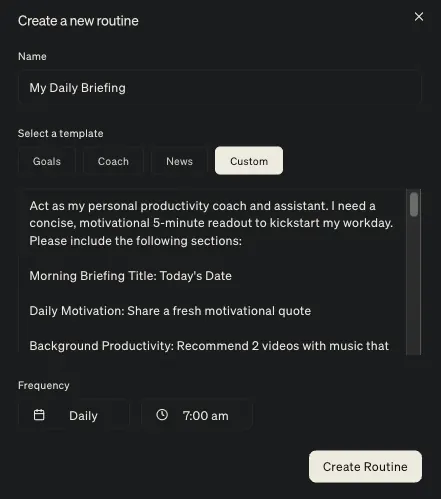
Frequency: Select when the routine should run.
- Select daily, weekly, or monthly
- Choose the specific time
Step 4: Save your Routine
Click the Create Routine button.
You’re all set!
It takes a few minutes for the routine to run, but each time you create or edit a routine, it’ll immediately produce an output.
Managing your Routines
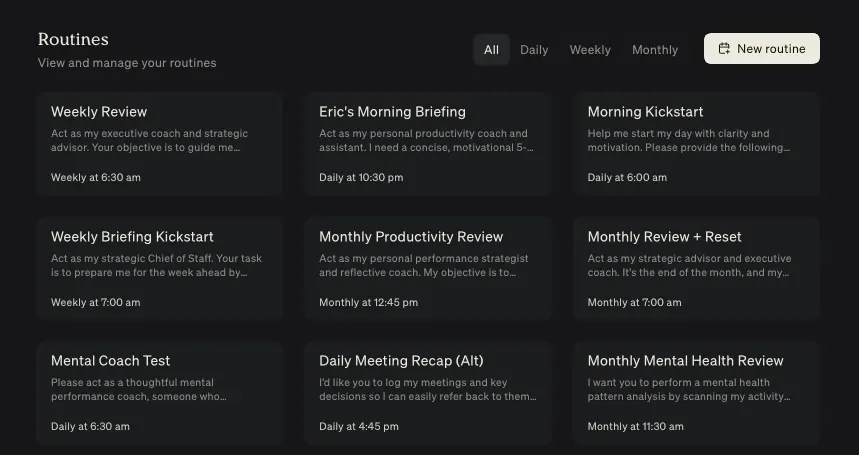
Once you’ve created a few Routines, you can easily manage them from the main Routines dashboard. This is your central hub for viewing and controlling all of your automations. You can quickly filter the Routines by Daily, Weekly, or Monthly frequency settings.
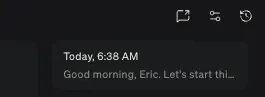
When viewing a specific Routine, you can edit it via the options on the top right side. You’ll see options to Send it to Chat, Configure and Edit, and see a history of outputs.
Next steps
You’re now ready to build your own suite of personal automations. The best way to start is to think about the questions you ask yourself or Littlebird every single day or week. Is there a report you build manually? A set of websites you check for updates? Those are perfect candidates for your next Routine.
Routine behavior and notifications
A few things to know about how Routines behave:
- Auto-pause: By default, Routines auto-pause if you stop opening the generated content. This saves your usage so you are not spending it on outputs you are not reading. You can resume a paused Routine anytime from the Routines dashboard.
- Push and email notifications: You can configure a Routine to send you push and email notifications when a new output is ready, so you know the moment your briefing or review is available. If the routine generated an artifact like a PDF, it would be attached to the email.
- Open a report from its email: The notification email opens with the start of the report, so you can often read what you need without leaving your inbox. Select Open in Littlebird to jump to that report in the app.
- Reply to a report by email: Replying to the email continues the chat that produced the report. Ask a follow-up such as “which of these needs me today?” and the answer comes back in the same email thread. You do not need to open the app to ask.
- Ask about Routines in Chat: You can ask about your Routines right in Chat. Try “What did my morning briefing say today?” or “Show me last week’s weekly review” to pull up past outputs without navigating to the Routines tab.
- Manage Routines from Chat: Ask Littlebird to create a Routine, change its prompt or schedule, pause it, or resume it. Try “Turn this into a weekday morning briefing at 8:30”.
As you get more comfortable with Routines, you can make them even more powerful by connecting Littlebird to your other applications.