Keep related conversations and meetings together with per-project instructions, file uploads, and scoped context.
What Projects do
Projects group related chats and meetings together, like folders for a body of work. Planning a product launch? Create a project, move your brainstorming chats, strategy docs, and meeting notes into it, and everything stays organized in one place.
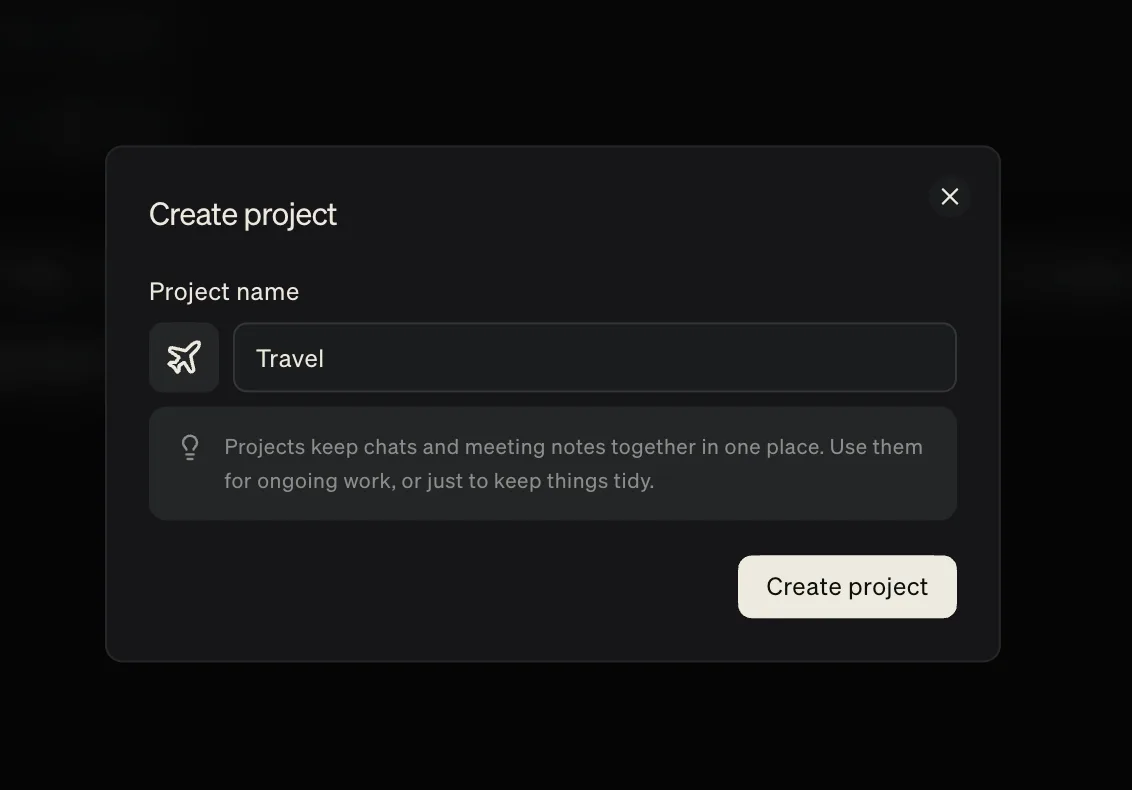
Create a project from the sidebar. Choose a custom icon to make it easy to spot, and star it to keep it pinned at the top.
Share a project
If you’re part of a team, you can share a project with the whole team or specific people in it. Everyone with access can see the project’s chats and notes.
Open the project, select Share, then give each person or team Member or Admin access.
Per-project Instructions
Each project has its own Instructions field where you set standing guidance for how Littlebird should respond inside that project. For example:
- “This project is for Q4 planning. Always reference the attached roadmap first.”
- “I’m researching competitor pricing. Ground answers in the attached files.”
- “Respond in Spanish for this project.”
Instructions save you from repeating context every time you start a new chat within the project.
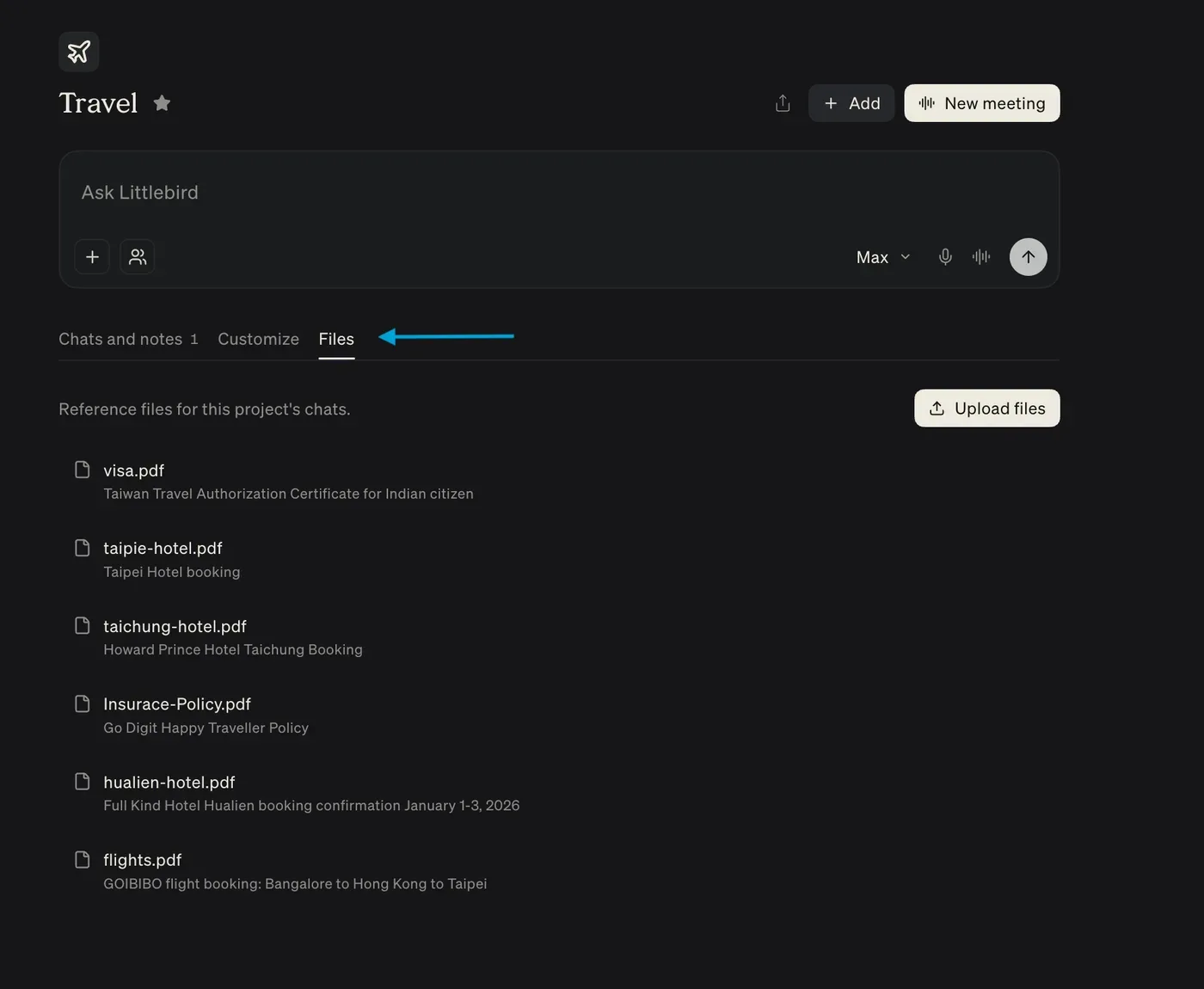
Files
Upload any relevant files to a project. Those files are accessible by all chats within the project, so you don’t need to re-attach them each time. You can upload up to 20 files per project (30 MB each). Supported formats: PDF, Word (.doc, .docx), PowerPoint (.ppt, .pptx), Excel (.xls, .xlsx), CSV, plain text, and Markdown.
Context sources
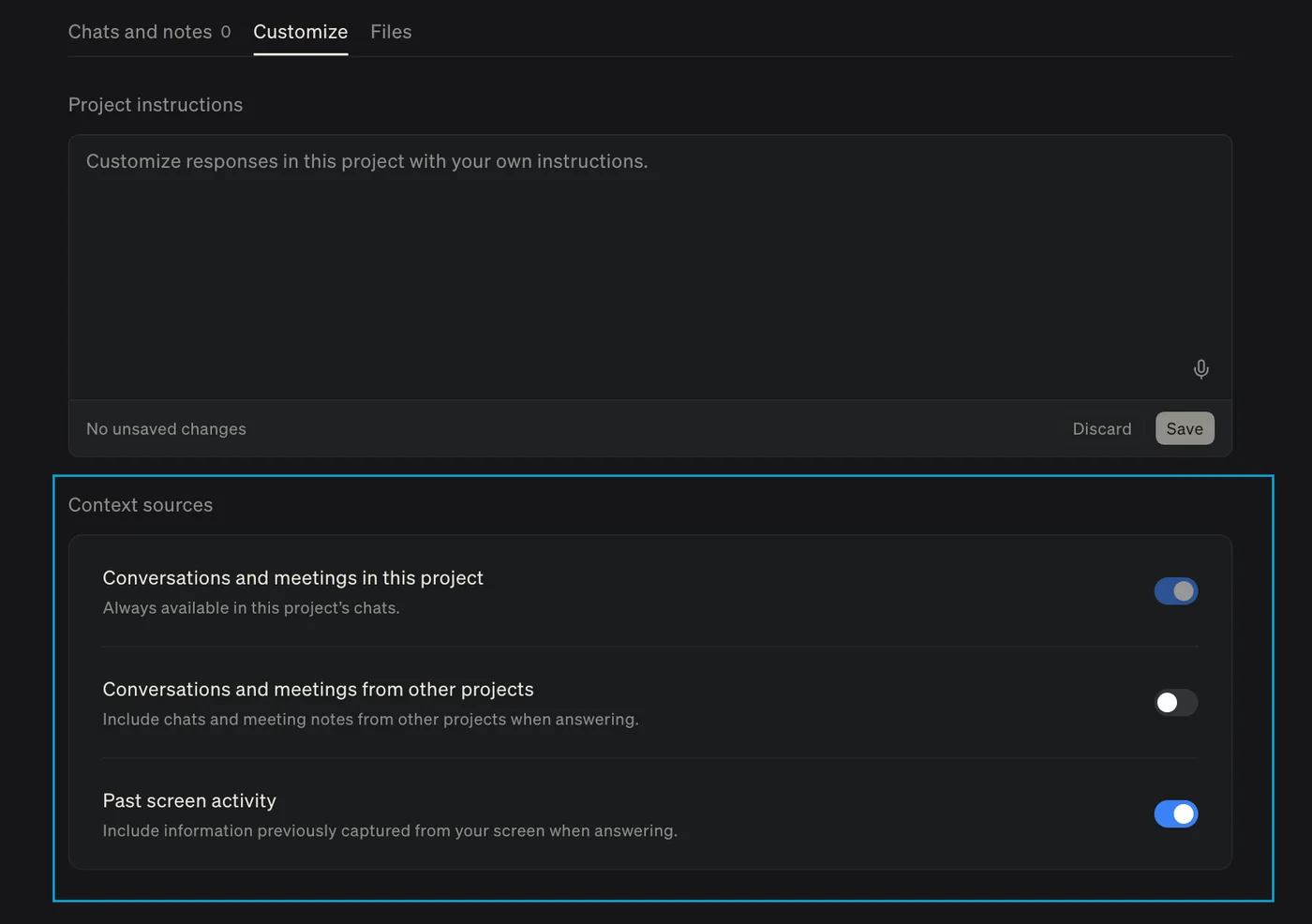
Project chats can always draw on conversations and meeting notes saved in that project.
Under Customize > Context sources, choose whether they can also use:
- chats and meeting notes from other projects
- information previously captured from your screen
Chats and meeting notes from other projects are unavailable by default.
Moving chats and meetings into a project
You can move existing chats and meetings into a project from the Chats view. Click Recents in the sidebar, select one or more chats, then choose Add to project from the bulk actions bar.