Stay present in the meeting while Littlebird captures the transcript, shapes the summary, and keeps the details together.
Meeting Notes transcribes and summarizes a conversation while you stay in it.
When the recording ends, Littlebird turns the transcript into a structured summary with decisions and action items.
With Meeting Notes, you can:
- Stay present: Follow the conversation instead of splitting your attention with notes
- Keep the record: Return to the transcript, decisions, and deadlines later
- Leave with next steps: Find decisions and action items in the generated summary
- Skip the meeting bot: Littlebird transcribes audio from your computer without joining the call
More ways to use Meeting Notes
Beyond manual recording and the automatic calendar prompt, Meeting Notes offers a few more capabilities:
-
Auto-start transcription: Enable automatic recording for supported meeting apps in Settings → Meetings. Littlebird will start transcribing when a meeting begins without any manual action.
-
Automatic Meeting Prep: Choose whether Littlebird prepares context for upcoming meetings in Settings → Meetings. The prep notes are also sent over in an email. You can also create a prep manually from the event card.
-
Chat with a meeting note: You can chat directly with a meeting from the meeting note page. Ask follow-up questions, extract more details, or draft a follow-up email without leaving the meeting view. You can also use Hover to query about an ongoing meeting without opening the app.
-
Calendar filtering: In Settings → Meetings, you can choose which calendars Littlebird monitors for automatic meeting detection, so you only get prompts for the meetings that matter.
-
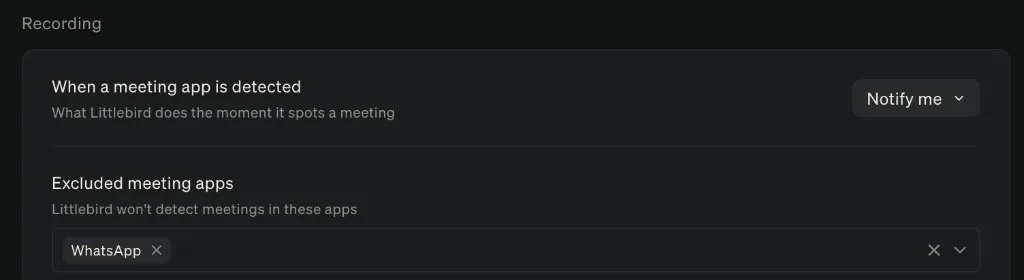
App exclusions: Exclude specific apps from automatic meeting detection in Settings → Meetings.
-
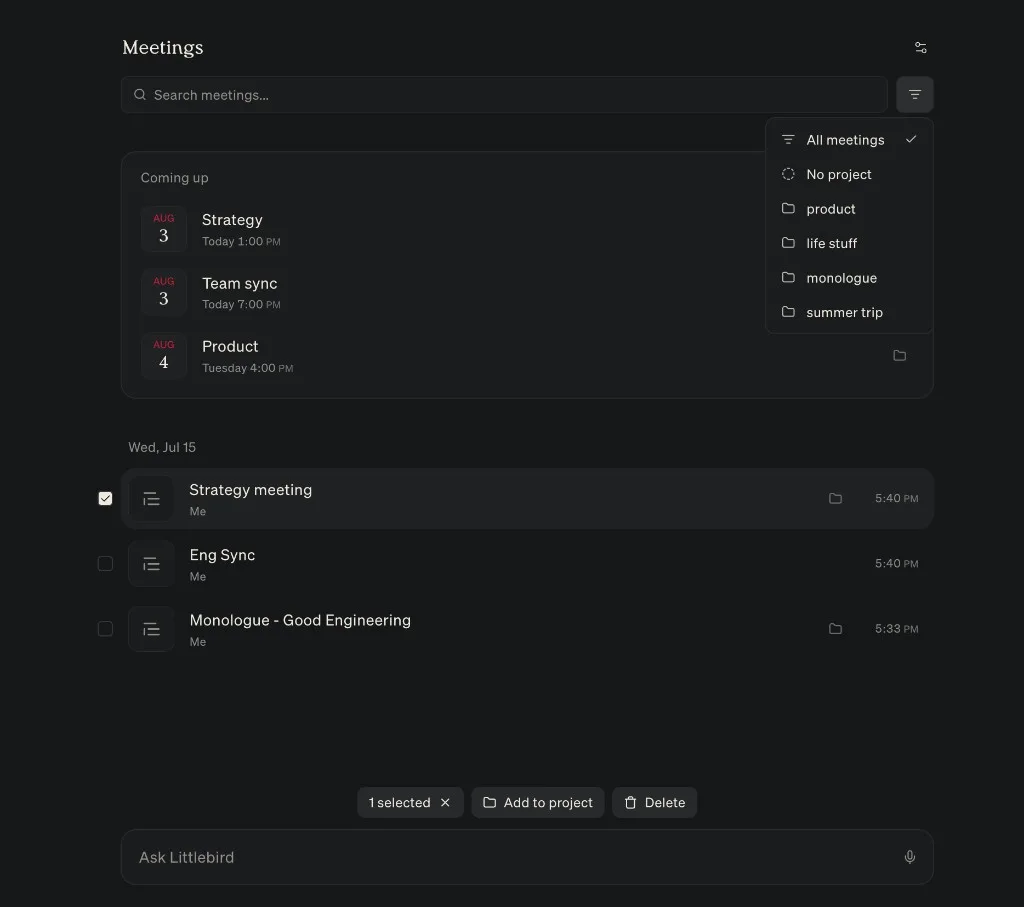
Project filtering: Filter the Meeting Notes list by project when you want to focus on one stream of work.
-
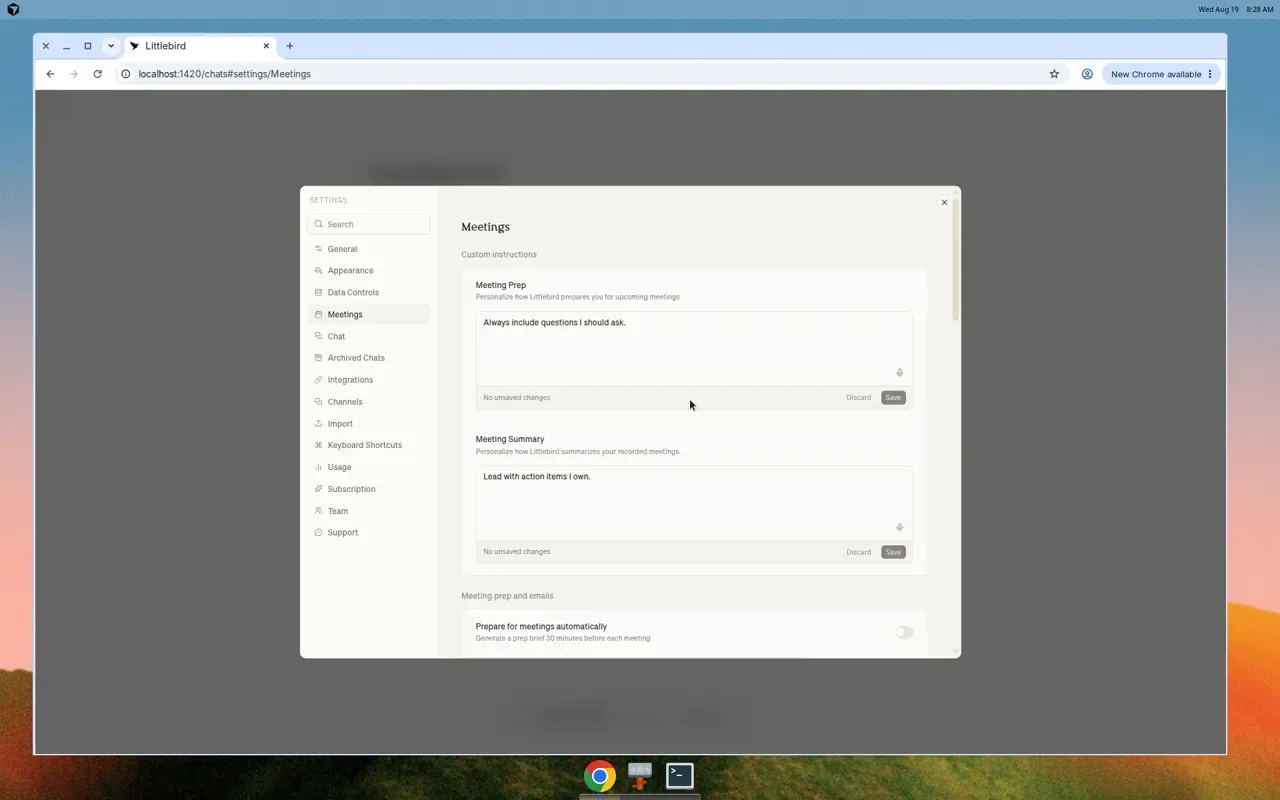
Custom instructions: Personalize meeting prep and summaries in Settings → Meetings → Custom instructions.
-
iOS in-person transcription: On the iOS app, you can transcribe in-person meetings using the device microphone. System audio is not available on iOS, so online meetings are not supported on mobile.
Send the summary to the attendees
A summary is written for you. It carries a private For you section and phrasing that only makes sense to whoever took the notes, which is why forwarding one has never been a good idea.
Send to attendees rewrites it for other readers. Littlebird drops your private section, recasts the summary for a group, and prepares an email draft that waits for you.
- Choose Send to attendeesUse the chip on the meeting note, or the same item in the ⋯ menu.
- Check the recipients
Littlebird fills them in from the meeting invite, leaving out you and any room or equipment on it.
- Read, edit, and sendThe draft is yours to change. Nothing is sent until you send it.
The email goes out from your own connected Gmail account rather than a Littlebird address, so replies come back to you and the thread sits in your sent mail.
The draft opens with a line crediting Littlebird for the notes. Delete it before sending if you would rather not include it.
Custom instructions for meeting prep and summary
Set standing rules for how Littlebird prepares you for meetings and how it writes summaries.
In Settings → Meetings → Custom instructions, you can edit:
- Meeting Prep — personalize how Littlebird prepares you for upcoming meetings
- Meeting Summary — personalize how Littlebird summarizes your recorded meetings
Meeting prep and meeting summary instructions are independent. Changing one does not affect the other. Chat still uses Settings → Chat → Custom Instructions.
Littlebird also knows each meeting’s name and attendees when it generates prep and summaries, so you can write instructions that depend on the meeting. For example, ask for British English spelling, lead with risks and open questions, or tailor prep differently for recurring syncs and client calls.
Examples:
- “Use British English spelling”
- “Always include a section on risks and open questions”
- “For agent sync calls, include a reminder of last week’s blockers”
How it works
Littlebird gives you two easy ways to capture a meeting, ensuring you’re always in control.
Option 1: The automatic prompt
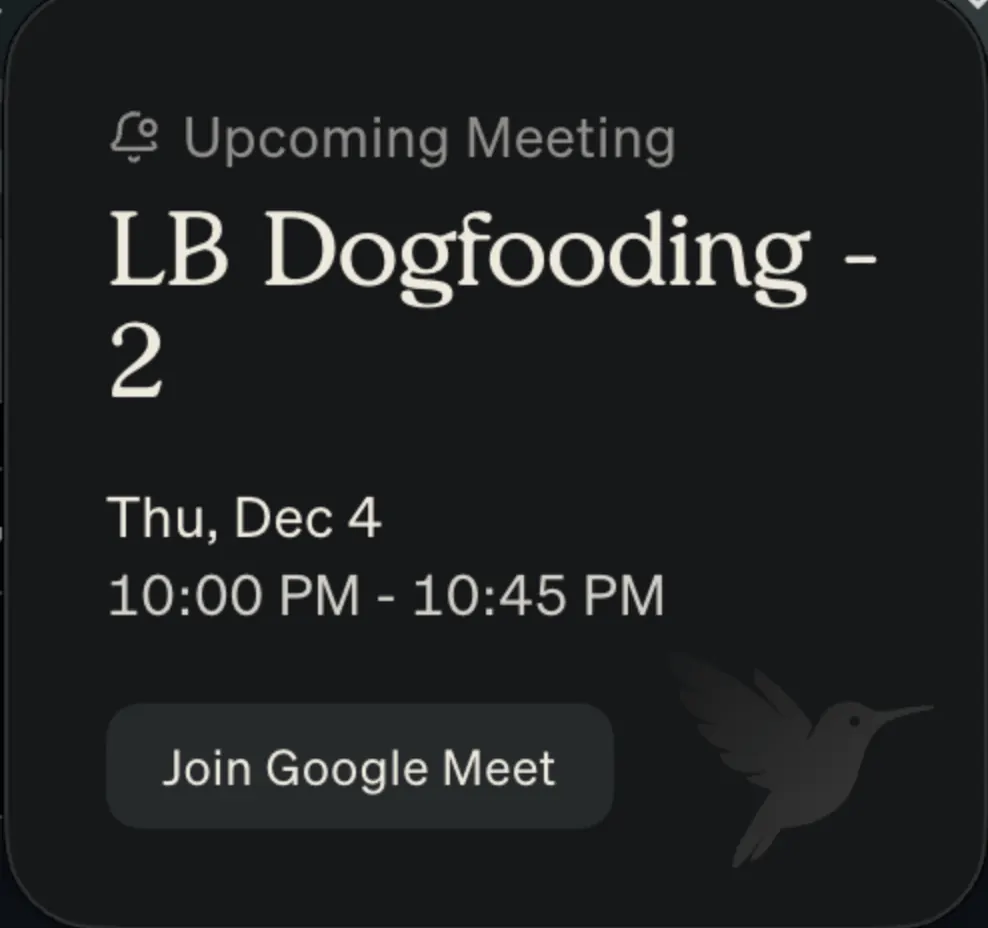
A few minutes before any event on your calendar, Littlebird will automatically display a small pop-up asking if you’d like to record the upcoming meeting. Click the Join Meeting button, and Littlebird will be ready to capture the conversation as soon as it begins. You can configure how early this pop-up appears in your Settings tab.
Option 2: Manual recording
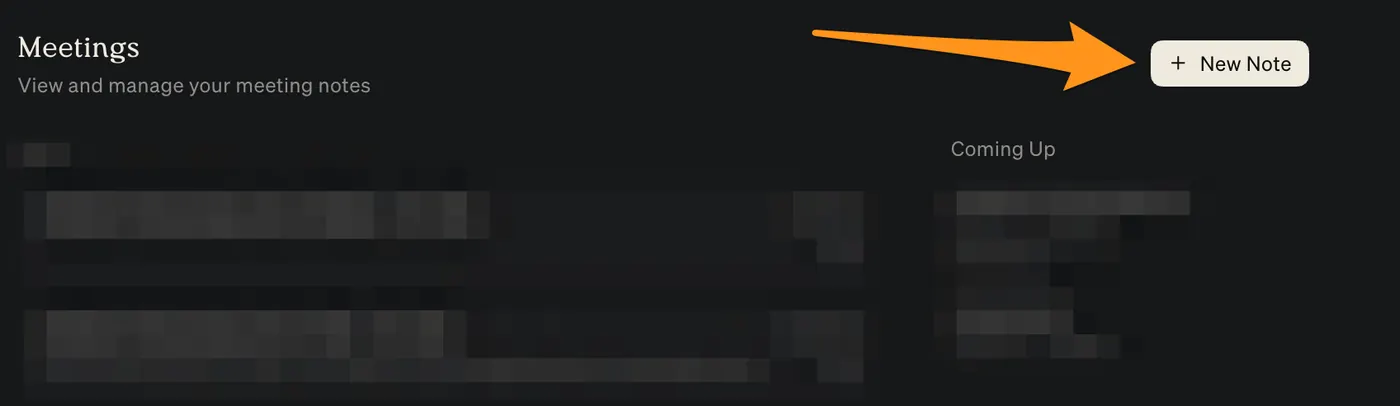
If you’re jumping into an unscheduled call or you dismissed the automatic prompt, you can start recording at any time. Just open the Littlebird app, navigate to Meeting Notes, and click the + New Note button in the top right corner to start capturing the context of your call.
Once your meeting is over, Littlebird uses the context of the transcript to generate a concise, structured summary. You can find all your completed meeting notes in Meeting Notes.
The anatomy of a Meeting Note
Every Meeting Note is automatically organized into clear, scannable sections, giving you the information you need at a glance. At the top, you can easily toggle between your own Note section, the AI-generated Summary, and the full Transcript as well.
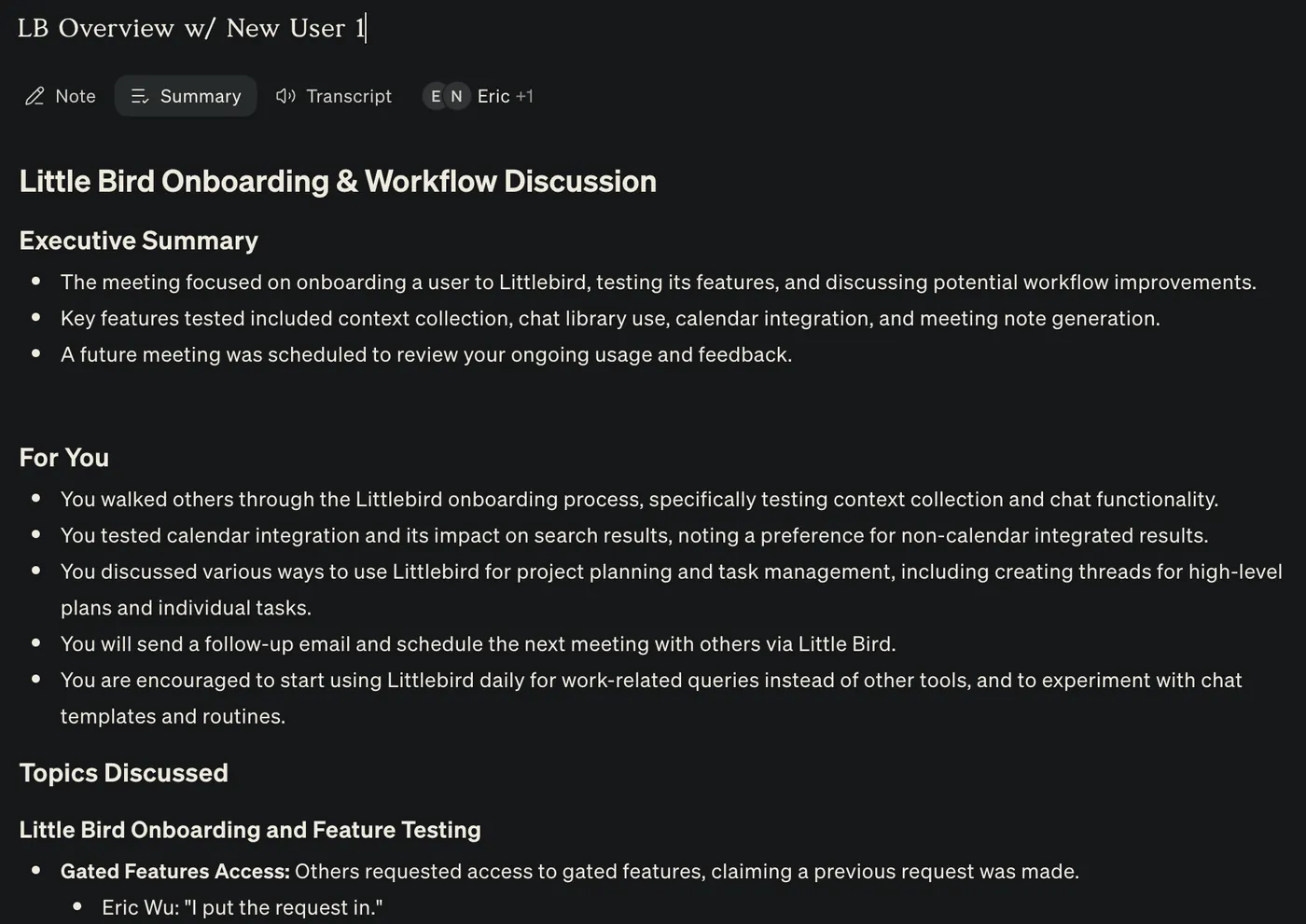
Here’s what you can expect to find in the Summary view:
- Executive summary: A short overview of the conversation for a quick read.
- For you: This is your personalized action-item list. Littlebird analyzes the conversation and extracts the specific tasks, commitments, and follow-ups assigned directly to you.
- Topics discussed: A more detailed, bullet-point breakdown of the key subjects covered in the meeting, often including important quotes to preserve specific details and context.
- Decisions: A clear, unambiguous list of the key decisions that were made during the call.
- Action items: This is your complete to-do list. Littlebird intelligently separates action items assigned to You from those assigned to Others, so you can immediately see what you’re responsible for.
- Risks/open questions: This crucial section highlights potential blockers, risks, and unresolved questions raised, ensuring important concerns don’t get lost after the meeting ends.
Every part of the generated summary is editable. Simply click into any section to add your own thoughts, corrections, or context. You can also share a link to the summary, making it easy to bring a colleague up to speed or reference a specific decision.