Give Littlebird a useful picture of your work by checking Context Awareness and connecting the tools you rely on.
Your first couple of days with Littlebird
This video may show an earlier app layout. For the current integration steps, follow the instructions below.
Start with the work that matters
Littlebird starts building context as soon as you install it. To give it a useful first picture of your work, spend a little time in the apps you use most — your email, notes, project tools, and calendar are good places to begin.
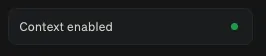
You can check that Context Awareness is active in two places:
-
In the Littlebird app, look in the bottom-left corner.
- A green light means Context Awareness is on.
-
In the menu bar at the top of your Mac screen.
-
If Context Awareness is paused, you’ll see a pause icon beside the bird.

-
Connect your calendar and email
Littlebird may have asked you to connect your email and calendar during setup. If you skipped that step, you can connect them now.
How to connect
You only need to connect each account once.
-
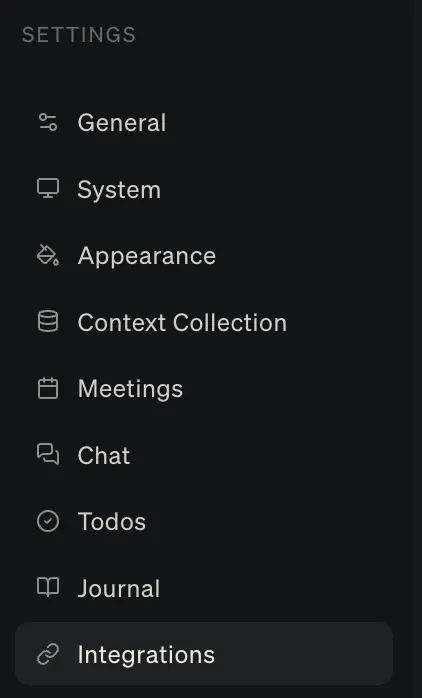
Select Integrations in the sidebar, then open Connectors.
-
Find Google Calendar and select Connect.
The screenshot below shows older integration controls.

-
You will be redirected to a Google authentication screen. Choose the Google account you want to connect.
-
Review the permissions, then select Allow.
-
When you return to Littlebird, check that Google Calendar appears under Connected.