Connect the accounts your work lives in, and Littlebird stops being something you ask and starts being something that does.
An assistant that only knows your screen can tell you what to do. An assistant connected to your accounts can do it.
That is what integrations are. Connect Gmail and Littlebird does not just tell you there is an email waiting — it writes the reply, in your voice, and holds it for you to send. Connect your calendar and it does not just remind you about the call — it reads the thread with the person you are meeting, and walks you in prepared. Connect your task tracker and the follow-up from a meeting is a card you approve, not a note you have to remember.
You stay in charge of the one part that should stay yours: the decision. Littlebird prepares the work, and you approve it before anything leaves your account. The draft waits for you. The event is not created until you confirm it. Nothing sends on its own.
What it looks like
The follow-ups write themselves. You finish a call and the summary is already waiting, with a draft to the other people on the invite sitting next to it. You read it, change a line, and send it from your own account.
Your inbox stops being a place you check. You ask what needs a reply, and Littlebird hands you the drafts. You are reviewing work, not doing it.
The prep is done before you think to ask. Meeting prep reads your connected accounts, so you walk into a call knowing the last thread with that person and the open items from it. Routines run the same way on a schedule, so the briefing exists before your day does.
The thing you would have forgotten gets done. The action item from the meeting, the task you mentioned in Slack, the event that should exist by now — Littlebird turns each into something you can approve with one look.
Browse everything you can connect
Littlebird connects to email, calendars, chat, notes, task trackers, CRMs, file storage, and a long tail of tools beyond those.
See the full, current list at littlebird.ai/all-integrations.
The pages in this section cover the ones with the most to say about setup and permissions. For other tools, open Integrations → Connectors from the sidebar, find the tool, and select Connect.
Connect more than one account
The screenshot below shows older integration controls.
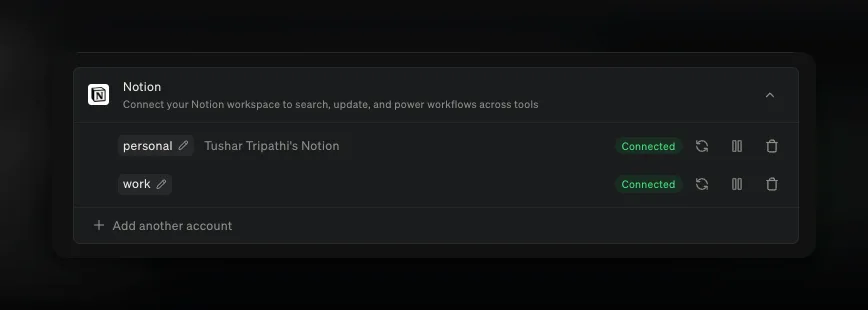
Most people have two of something — a work inbox and a personal one, a calendar for each, more than one Slack workspace.
Open Integrations → Connectors, choose a connected integration, and select Add account in its account controls. Littlebird names each account after the account you signed in with, using the workspace name, the team, or the email address, so you can tell them apart. Rename any of them with the pencil beside the name.
Those names are how you steer a request:
When you have several accounts on one integration, Littlebird reads across all of them unless you say otherwise. Anything that sends, replies, or creates is different: it needs to know which account to act as, so it will ask if your request does not make that clear.
Signing in always asks which account you mean, including when you reconnect one later, so a repair cannot quietly attach the wrong identity to a name you have already been using.
Bring your own MCP server
If a tool you use is not in the catalog and it publishes an MCP server, you can add it yourself. Open Integrations → Connectors, select Add custom, and give Littlebird its URL. Most servers use a browser sign-in; some accept an API key instead.
Once it is connected, its tools are available in Chat and to Routines exactly like a built-in integration, and it can hold several accounts the same way.
Managing what is connected
Manage connected accounts from Integrations → Connectors. Each connected account carries its own controls, so you can pause one without touching the others:
- Pause an account to stop Littlebird using it while keeping it connected. It shows a Disabled badge.
- Reconnect an account that has expired or been disconnected.
- Remove an account to revoke Littlebird’s access to it.
A collapsed integration summarizes its accounts, so a glance tells you whether something needs attention.